Organization Units and Persons
This page is used to view and manage either a person or an organization unit.
Purpose
The purpose of this page is to allow an admin to quickly find either a person or an organzation unit. It allows you to view and modify the data linked to the seleted entity and would usually be used to complete single tasks linked to only one entity.
Who can access this page
Here the concept of the node tree allows you to read whatever you have the permissions to read and every child of that node. If something is not visible, you are missing the permissions to read that entity or the parent of that entity. To edit the nodes you will also need that permission.
Related nodes
List the node types that are rendered or managed on this page.
- Primary node: Entity Root, Organization Unit, Person
- Related nodes: References, Smart Cards, Permissions, Requests
Page layout
The page is split into two sections, on the left you see the node tree where you can find organization units and persons. Organization units are expandable and reveals its children, either another organization unit or persons.
Landing Page
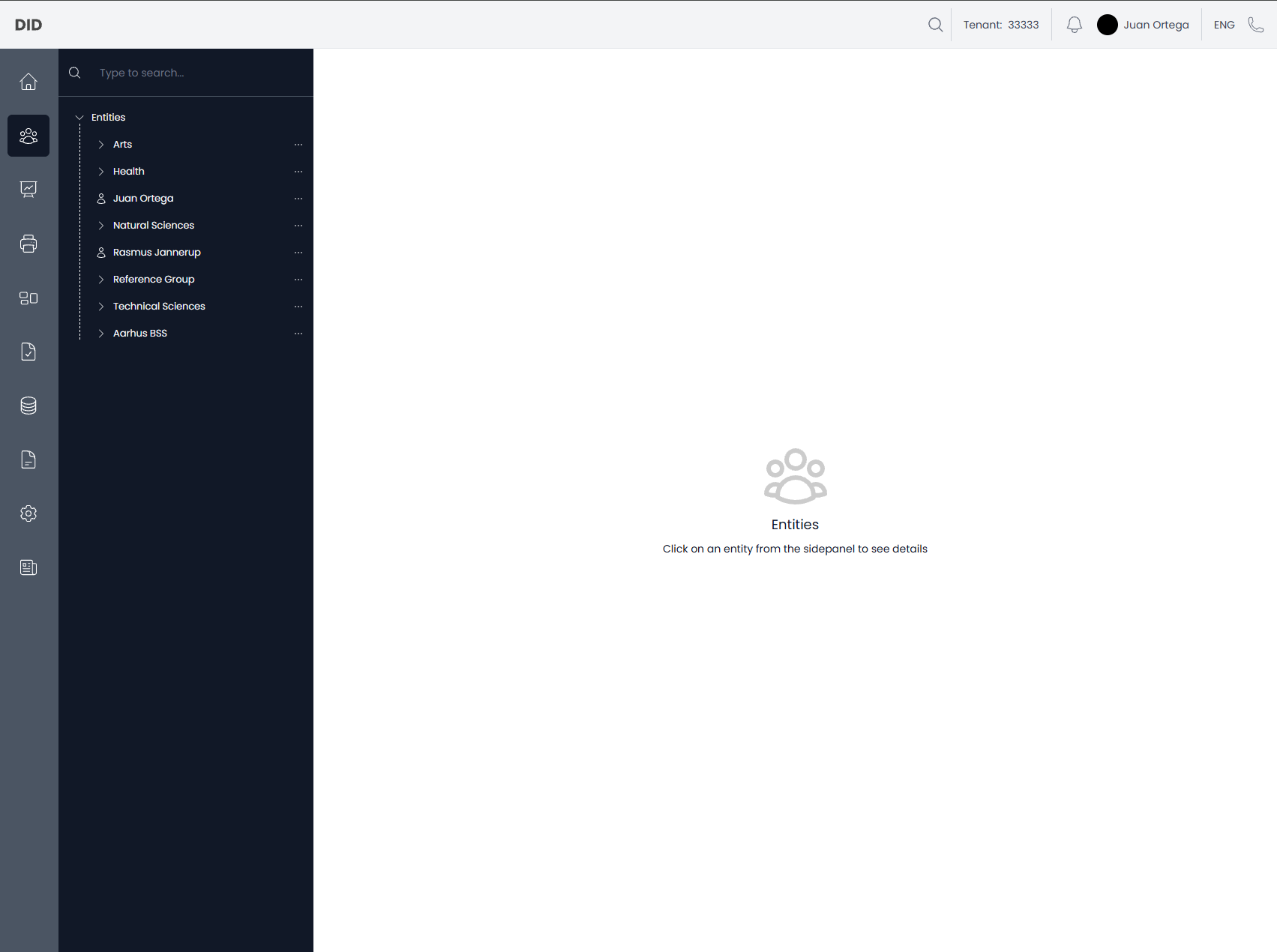
When you navigate to the Organization Units and Persons page you will be greeted by the node tree to the left and an empty screen to the right. If you select any node to left you will see one of the two pages below.
Organization Unit Selected
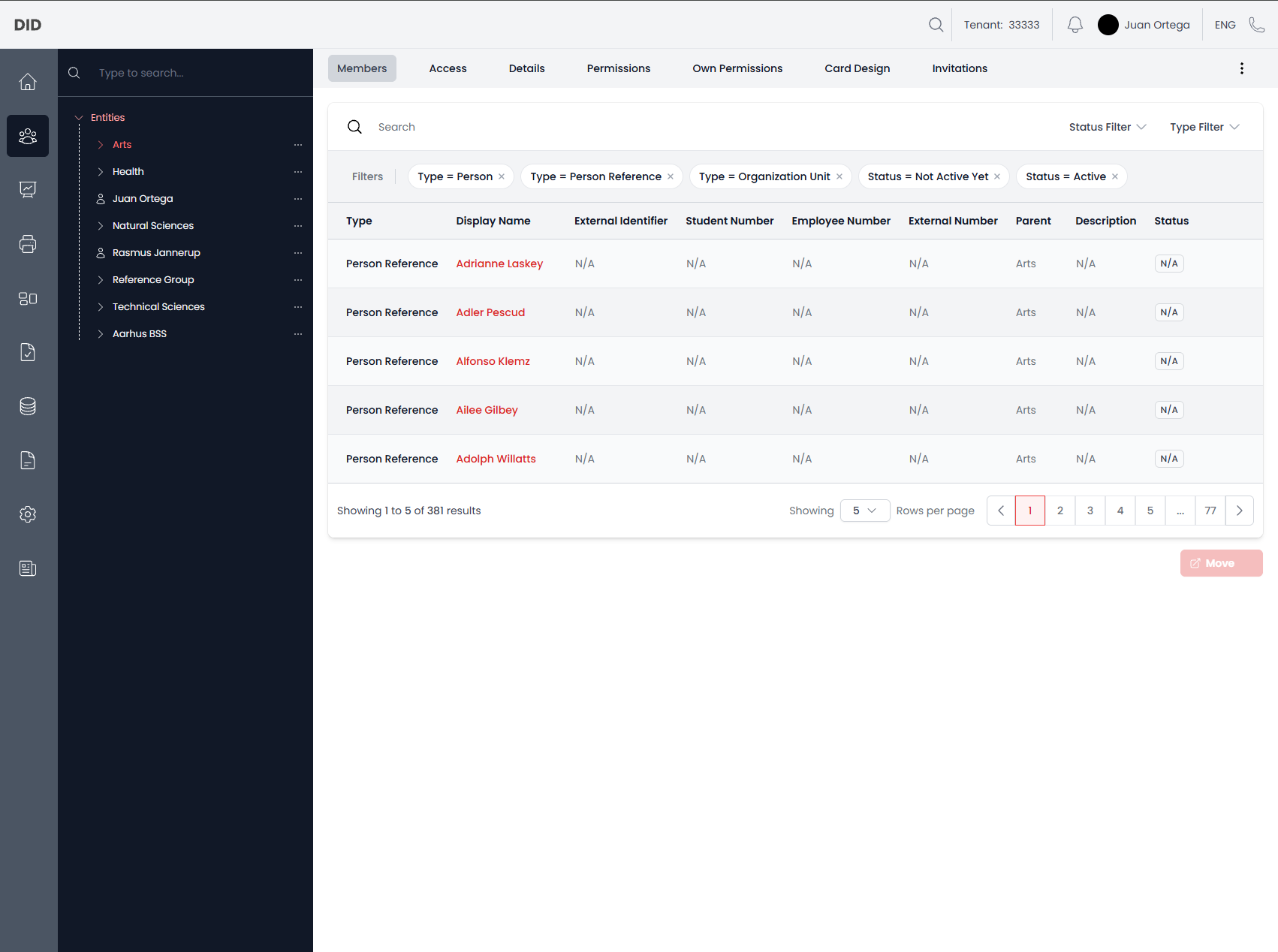
Members
When you click on an organization unit you will be greeted by the Members section, which show you all the children of the organization unit in a table. In the top you will find the other sections and three dots, that will allow you to do different workflows.
Workflows
- Add Person.
- Add Organization Unit.
- Add References.
- Remove References.
- Add Groups with initial permissions.
- Print Cards for multiple users.
Access
Allows you to see what ressources this organization unit has access to.
Workflows
- Give access to a ressource.
Details
Shows you the details of the selected organization unit.
Workflows
- Remove the organiaztion unit.
- Edit the organization unit.
- Give permissions.
- Download the organization unit as a .CSV file.
Permissions
Shows you what permissions other nodes has to the selected organization unit.
Workflows
- Give others permissions to this organization unit.
Own Permissions
Show you what permissions the selected organization unit has to other entitites.
Workflows
- Give others permissions to this organization unit.
Card Design
Shows you what card designs are linked to the selected organization unit. Could be that the organization represents a group of persons, that all need that same card design.
Workflows
- Create a new card design for this Organization Unit.
- Link an existing design.
Invitations
Show you who and how many has been invited via email to this organization unit.
Workflows
- Invite people to this organization unit via Email.
Person Selected
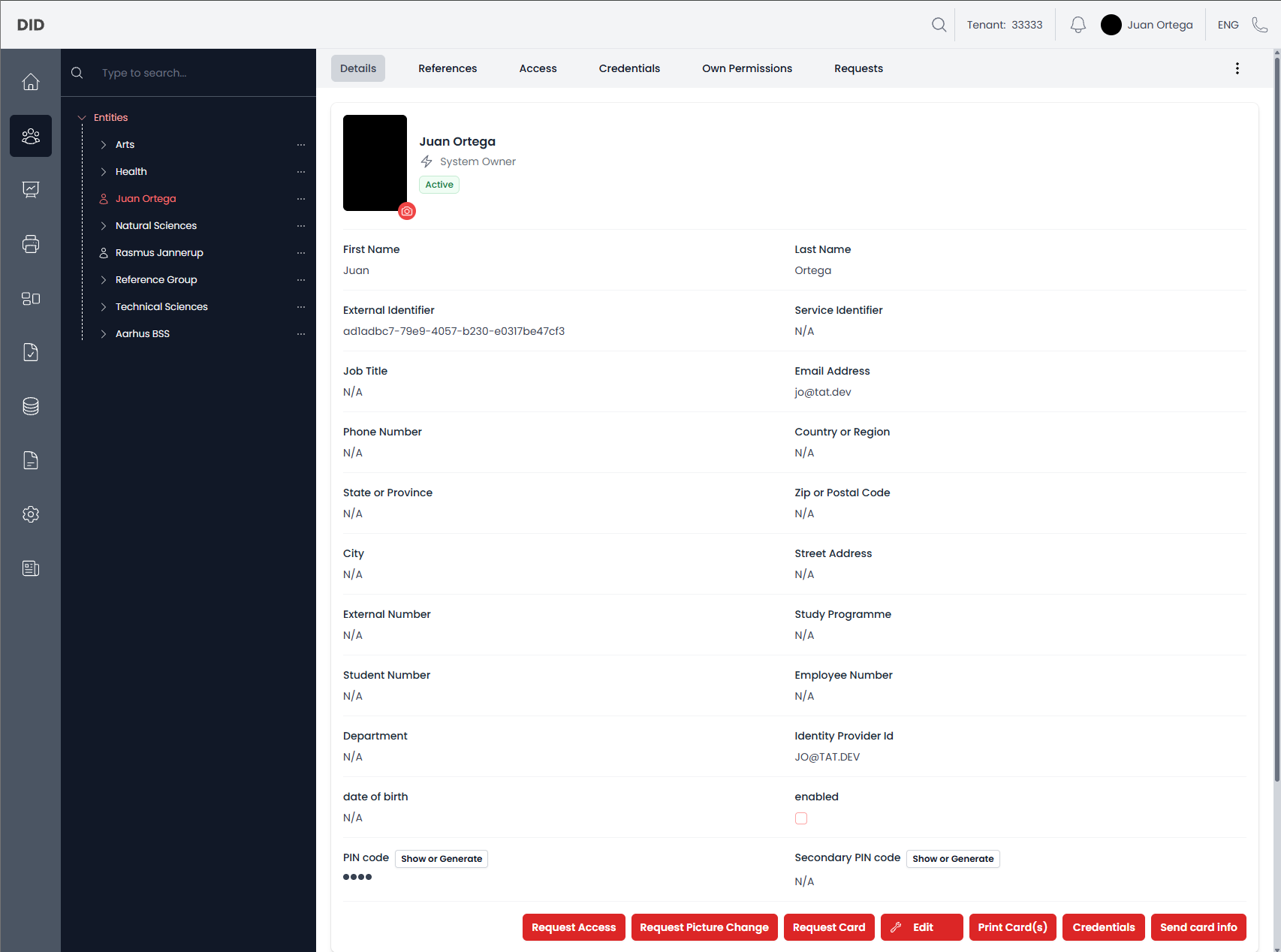
Details
When you click on a person you will be greeted by the Details section, which shows you all the details on the selected person. In the top you will again find the different sections and three dots linked to different workflows
Workflows
- Request different things on behalf of the user
- Edit
- Print Cards
- Create a Smart Card directly
- Send selected card info to the user
References
Allows you to see what references this node has in different organization units.
Access
The same as organization units, you will be able to see what ressources this node has access to.
Workflows
- Give access to a ressource
Credentials
Allows you to see all the smart cards linked to this person and what state they are in.
Own Permissions
Allows you to see what permissions this person has to different nodes.
Workflows
- Add permissions for this person
Requests
Allows you to see what requests linked to this person and what state they are in.
Workflows
- Request access on behalf of this person
- Request a new card on behalf of this user
- Request a picture change on behalf of this user
Common usage notes
- Nodes can not be removed by mistake, there is two step enabled.
- Some workflows or actions may be hidden or deisabled depending on permissions, if that is the case you often be able to tell what is needed to enable the workflow or action.