Resources
This page is used to view and manage all resources in the system.
Resources represent physical or logical units such as buildings, areas, rooms, doors, or other access-controlled entities. They are organized hierarchically and are used as the basis for access control and permissions.
Purpose
The purpose of this page is to allow administrators to view, structure, and manage resources used for access control.
This page is typically used when: - Reviewing which users or organization units have access to specific resources - Granting or removing access to resources - Managing the hierarchy of resources - Inspecting permissions and applicants related to a resource
Resources themselves do not grant access — they are targets to which access definitions and permissions are applied.
Who can access this page
Access to this page is controlled through permissions and follows the node tree model.
You can: - View resources you have read permissions for - Manage resources you have edit permissions for
If a resource is not visible in the tree, you do not have the required permissions on that resource or one of its parent nodes.
Some actions, such as editing resources or managing permissions, require elevated rights.
Related nodes
- Primary nodes: Resource Root, Location, Building, Floor, Room, Door, Zone, Locker
- Related nodes: Person, Organization Unit, Access, Permission
Resources are passive nodes — they define where access applies, not who has access.
Page layout
The page is split into two main sections.
On the left, you will find the resource node tree.
On the right, details for the selected resource are displayed.
Landing Page
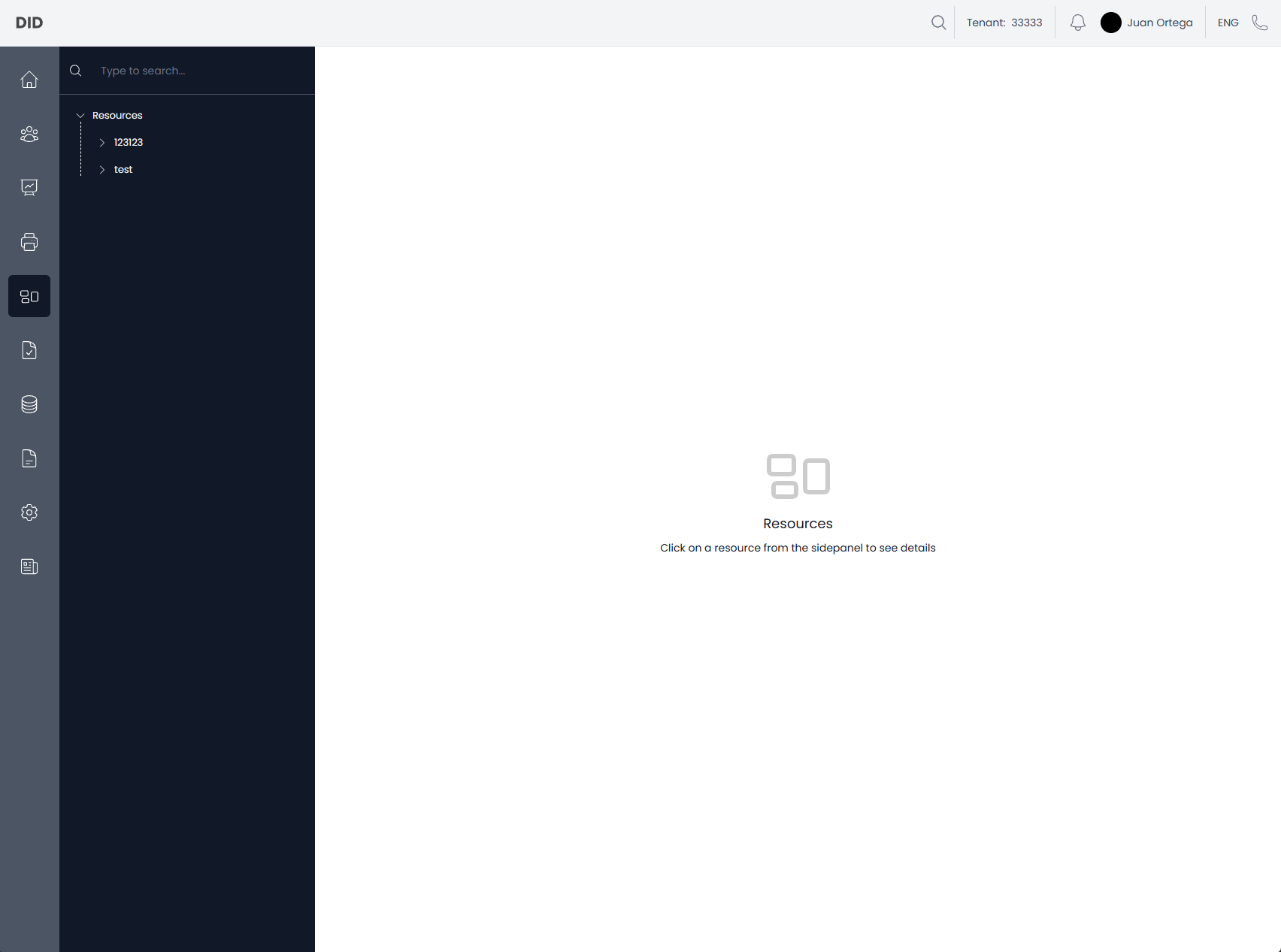
When navigating to the Resources page, you will see the resource tree on the left and an empty view on the right.
Selecting a resource in the tree will display its details.
Resource selected
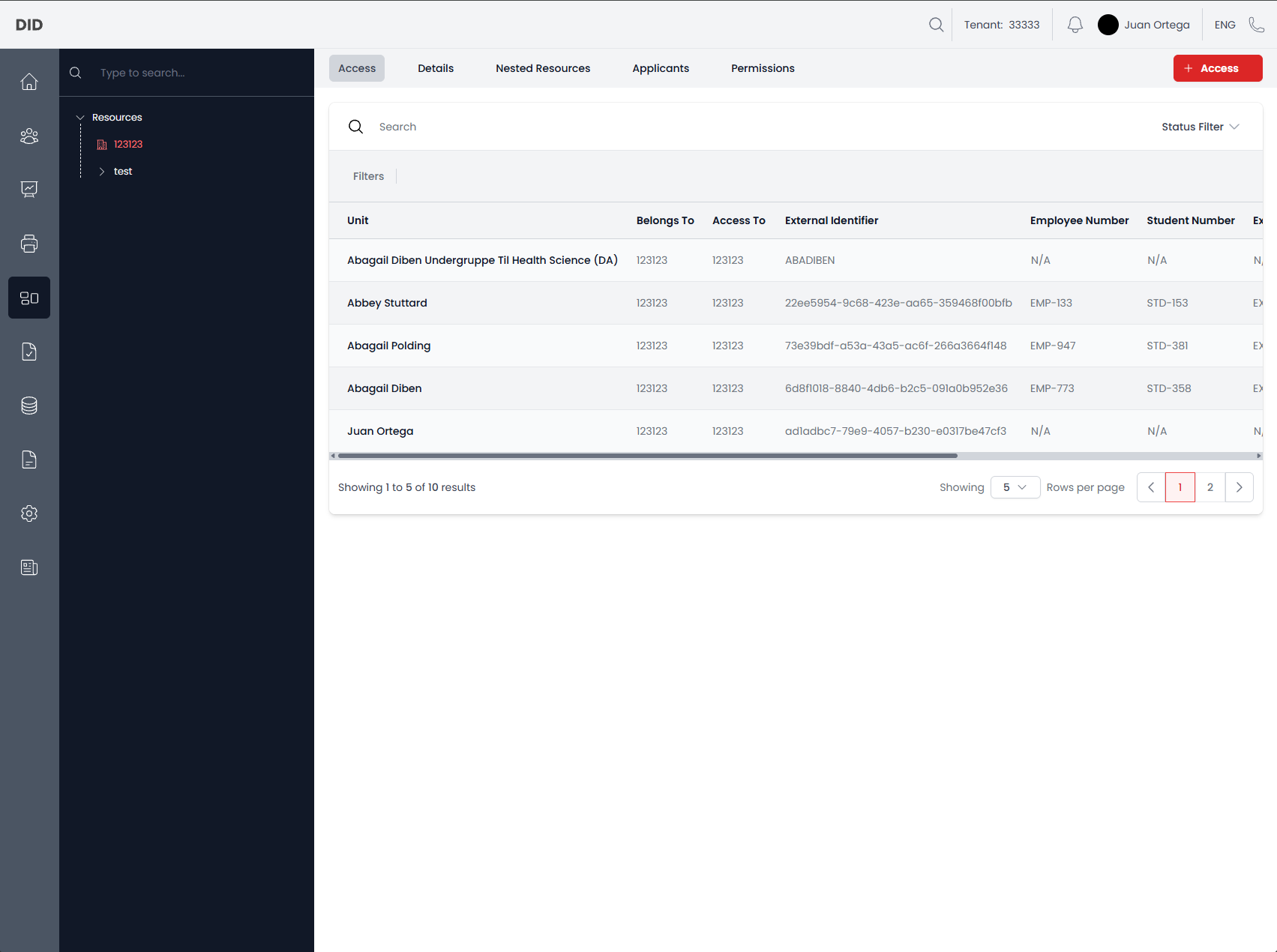
When a resource is selected, several sections become available, depending on permissions and resource type.
Access
The Access section shows all access definitions applied to the selected resource.
This view allows you to: - See which persons or organization units have access - Filter access entries by status - Review external identifiers linked to access entries
Workflows
- Grant access to the selected resource
Details
The Details section displays metadata about the selected resource.
This typically includes: - Resource name - Resource type - Identifiers
Workflows
- Edit the resource
- Remove the resource (two-step confirmation to prevent accidental removal)
Nested Resources
The Nested Resources section shows all direct child resources of the selected resource.
This reflects the hierarchical structure of the resource tree, for example: - Locations containing buildings - Buildings containing floors - Floors containing rooms or doors
Workflows
- Add a new child resource
Applicants
The Applicants section shows entities that can apply for access to the selected resource.
Workflows
- Add applicants to the resource
Permissions
The Permissions section shows which nodes have permissions on the selected resource.
This helps administrators understand: - Who can view the resource - Who can manage access or structure for the resource
Workflows
- Grant permissions on the selected resource
Common usage notes
- Permissions granted on a parent resource automatically apply to all child resources.
- Removing a resource will also affect all nested resources beneath it.
- Some actions may be hidden or disabled depending on your permissions; missing permissions are usually indicated via tooltips or disabled controls.
- Access entries and applicants are filtered by resource context — switching resources updates the displayed data.